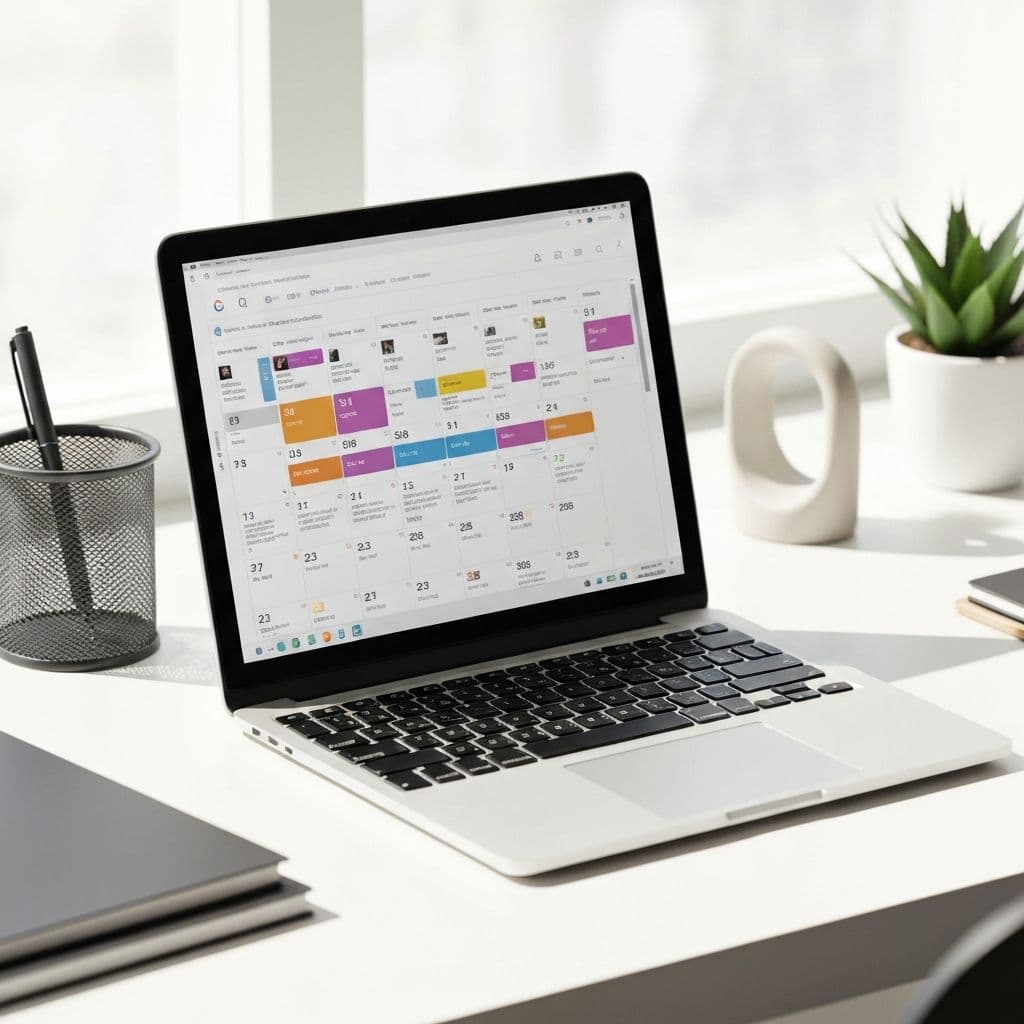
The Complete Guide to Google Calendar for HVAC Scheduling
Forget expensive scheduling software. Google Calendar is free, syncs everywhere, and does everything most HVAC companies need. Here's how to set it up right.
Step 1: Create Separate Calendars
Don't dump everything into one calendar. Create separate calendars for:
- Service Calls (repairs, diagnostics, maintenance)
- Installations (new systems, replacements)
- Estimates (in-home quotes)
- Internal (meetings, training, etc.)
Color-code each one. Now you can see at a glance what type of work is scheduled.
Step 2: Set Up Appointment Slots
Google Calendar has a built-in appointment scheduling feature. Here's how to use it:
- Create a new event
- Click "Add conferencing" and select "Appointment schedule"
- Set your available hours
- Choose appointment duration
- Add buffer time between appointments
- Share the booking link with customers
Now customers can self-book into your available slots.
Step 3: Configure Notifications
Set up notifications so you never miss an appointment:
- 24 hours before: Email reminder
- 1 hour before: Push notification
- 30 minutes before: SMS (if integrated)
Pro tip: Set up notifications for your technicians' calendars too, not just the office calendar.
Step 4: Use Description Fields Properly
Every appointment should include:
- Customer name and phone number
- Service address
- Job type (repair, maintenance, install)
- Any notes from the customer
- Gate codes, parking instructions, etc.
Techs should have everything they need without calling the office.
Step 5: Share Calendars Appropriately
- Techs: Can see their own appointments (details visible)
- Office staff: Can see and edit all calendars
- Owners: Full access to everything
Use Google Calendar's sharing settings to control access. Never give edit access to more people than necessary.
Step 6: Integrate with Automation
The real power comes when you connect Google Calendar to automation tools. With the right integrations:
- Web form leads auto-book into available slots
- Customers receive automatic confirmations
- Reminders go out without manual effort
- No-shows trigger automatic follow-up
Common Mistakes to Avoid
Mistake 1: No Buffer Time
Always leave 30+ minutes between appointments for travel and overruns.
Mistake 2: Overbooking
Just because a slot is "available" doesn't mean you should fill it. Leave room for emergencies.
Mistake 3: Forgetting Holidays
Block off holidays in advance! Nothing worse than accidentally booking a Christmas Eve appointment.
Mistake 4: Not Syncing Mobile
Make sure all techs have Google Calendar on their phones and it's set to sync automatically.
Advanced Tips
Tip 1: Create Recurring Maintenance Appointments
For maintenance contracts, set up recurring annual appointments. Customers appreciate the proactive reminder.
Tip 2: Use Different Event Colors
Even within a single calendar, use colors to indicate:
- Green: Confirmed
- Yellow: Needs confirmation
- Red: Emergency/Priority
Tip 3: Link to Customer Records
In the event description, add a link to the customer's record in your CRM or database.
The Bottom Line
Google Calendar is free and incredibly powerful. Most HVAC companies don't need expensive scheduling software—they just need to use Google Calendar correctly.
Combine it with automation tools that can book appointments directly into your calendar, and you have a scheduling system that rivals anything the big boys are using.